Tuesday, 22 December 2015

Solving Linux Dual Boot Problems With Windows 10

if you just upgraded to Windows 10 from Windows 8.1 or Windows 7 and also have a partition with Ubuntu installed, then Grub will no longer appear on the boot menu. So, here is the solution to solve this problem
There are two methods to repair the GRUB. One is by using Windows and another is by Ubuntu.
Method 1: Repairing it from Windows
You can either repair it from Windows 10 or run boot-repair from an Ubuntu live USB. These methods are also valid for Windows 8 or 8.1. Repairing from Windows 10
STEP 1:
After dual booting or upgrading, login into Windows and go to Command Prompt. Right click on it to run it as administrator.
windows-grub
STEP 2:
Type the command given below:
bcdedit /set {bootmgr} path \EFI\ubuntu\grubx64.efi
STEP 3:
Restart and you will get your Grub menu screen.
Method 2: Repairing it from Ubuntu
After following the above method if you still don’t get the grub menu, then you need a live Linux distribution either on a CD/DVD or on a USB stick.
STEP 1:
Use Boot-Repair to reinstall grub with all the options you need or boot into your live Linux distro and open GParted or any other partition manager it has. Look for your Ubuntu system partition which is in the form dev/sdxn, in our case /dev/sda7.
STEP2:
Login as root into your system to execute the actions needed to fix the issue. Open the terminal, log in as root and mount Ubuntu partition. Replace /dev/sda7, and ext4 filesystem with your partition and file system.
sudo su
cd /
mount -t ext4 /dev/sda7 /mnt
mount -t proc proc /mnt/proc
mount -t sysfs sys /mnt/sys
mount -o bind /dev /mnt/dev
STEP3:
If your /boot directory is on a different partition from your /, you’ll also need to mount that partition with the following command:
mount -t ext4 /dev/sda2 /mnt/boot
STEP 4:
Now it’s time to move into the mounted system, which is your Ubuntu installation:
chroot /mnt /bin/bash
STEP 5:
If it returns the error chroot: cannot run command ‘/bin/bash’: Exec format error, this usually indicates that you booted with one architecture (e.g. 32bit) and are trying to chroot into another (e.g. x86_64), so you need to use a Live that has the same architecture.
At this point it is useful to add a remainder to the prompt:
source /etc/profile
export PS1=”(chroot) $PS1”
And make sure /etc/mtab is up to date:
grep -v rootfs /proc/mounts > /etc/mtab
STEP 6:
Change UEFI boot order. Here the point is to change the order in which UEFI boots the system. First of all, have a look at the current order:
efibootmgr -v
This will output something like this:
BootCurrent: 0005
Timeout: 0 seconds
BootOrder: 2002,0004,0000,0001,2003,2001
Boot0000* ubuntu HD(2,e1800,82000,0a543b96-7861-11e2-8d38-d60b12dec0bc)File(EFIubuntushimx64.efi)
Boot0001* Ubuntu HD(2,e1800,82000,0a543b96-7861-11e2-8d38-d60b12dec0bc)File(EFIubuntugrubx64.efi)RC
Boot0002* EFI Network 0 for IPv6 (7C-05-07-9C-F6-18) ACPI(a0341d0,0)PCI(1c,2)PCI(0,0)MAC(7c05079cf618,0)030d3c000000000000000000000000000000000000000000000000000000000000000000000000000000004000000000000000000000000000000000RC
Boot0003* EFI Network 0 for IPv4 (7C-05-07-9C-F6-18) ACPI(a0341d0,0)PCI(1c,2)PCI(0,0)MAC(7c05079cf618,0)IPv4(0.0.0.0:00.0.0.0:0,0, 0RC
Boot0004* Windows Boot Manager HD(2,e1800,82000,0a543b96-7861-11e2-8d38-d60b12dec0bc)File(EFIMicrosoftBootbootmgfw.efi)WINDOWS………x…B.C.D.O.B.J.E.C.T.=.{.9.d.e.a.8.6.2.c.-.5.c.d.d.-.4.e.7.0.-.a.c.c.1.-.f.3.2.b.3.4.4.d.4.7.9.5.}………………..
Here you can identify the names of the devices and operating systems that are recognized by UEFI. You can find the signed bootloader for Ubuntu, the component responsible for loading grub.
How can we achieve this? By simply typing the following command into our terminal:
efibootmgr -o 0000

Tuesday, 1 December 2015

7 Best Apps to Root your Android Smartphone

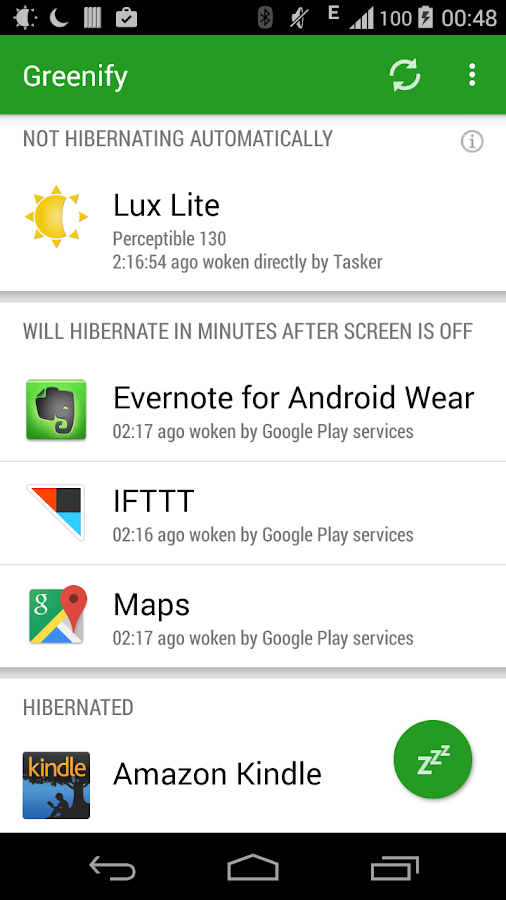
Greenify
Greenify help you identify and put the misbehaving apps into hibernation when you are not using them, to stop them from lagging your device and leeching the battery, in a unique way! They can do nothing without explicit launch by you or other apps while still preserving full functionality when running in the foreground.
Quick Boot (Reboot)
Quick Reboot, can use to reboot into bootloader, recovery, or download mode. It is easy to boot your device in recovery mode with this app rather than shutting down your device, holding the required buttons, and rebooting again.
 SDFix

SDFix is a system modifier tool that helps those running Kit Kat and Lollipop overcome the dreaded locked-down SD card problem. NextApp SDFix restores this ability by modifying a configuration file. As this app changes a system configuration file, it requires root access.
SuperSU

Most root methods have you installing this app anyway so most new root users already have it.  It’s simple to use and frequently updated to support new devices and changes in how root works.
Tasker
This powerful application can make your phone do pretty much anything whenever you need it to. You create a task or a scene, then you define what those tasks and scenes do.
Titanium Backup
By this application, you can uninstall bloatware, freeze apps, and backup your applications and application data.   This includes all protected apps & system apps, plus external data on your SD card. You can do 0-click batch & scheduled backups
Xposed Framework

Xposed Framework  can be replaced your current ROM to enhance your default root experience. You can  do various things like theming, UI and performance tweaks, visual modification, button remapping, and much, much more.

Installing Windows 7 To a USB External Hard Drive

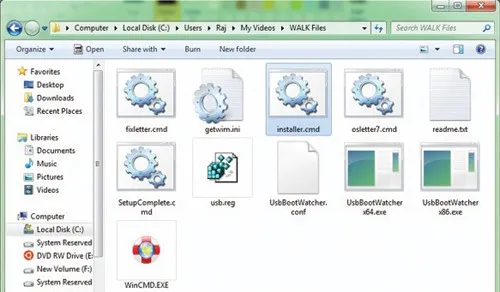
STEP 1: When you attempt to install Windows 7 on an external drive, you get “Windows cannot be installed to this disk” error. So to install Windows on an external hard drive, create two folders named Windows Files and WAIK Files on your desktop. For installation process, you need these three files: Bcdboot.exe, Bootsect.exe, and Imgex.exe. These files can only be obtained by installing Windows Automated Installation Kit for Windows 7 on your Windows PC. Once you installed the WAIK go to Windows installation directory and simply search for them. Copy these three files to WAIK Files folder that you have created on the desktop.
Step-1
STEP 2:
Now extract the Windows 7 Installation files from ISO file or copy all the contents of Windows 7 installation DVD to the Windows Files folder created at the desktop.
STEP 3:
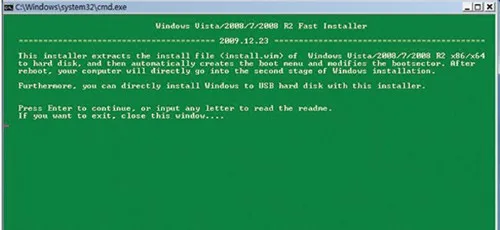
The next step is to run Installer.cmd file as Administrator (Right-click on installer.cmd and select run as administrator).
STEP 4:
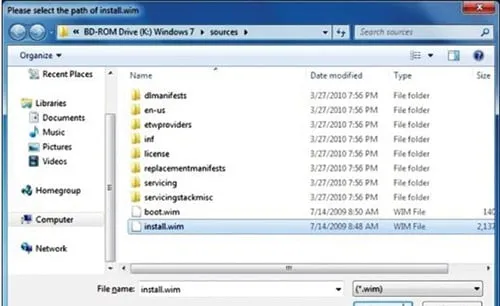
Now, press Enter key to browse to the install.wim file present in the Windows Files folder (Windows Files/ Sources/ install.wim).
Step-4
Step-4-2
STEP 5:
Now, you need to select the Windows 7 edition that you want to install on an external hard drive as shown in the screenshot.
step-5
STEP 6:
The next step is to enter your External drive’s drive letter which you can easily find out under My Computer. Enter the drive letter and press enter key.
step-6
STEP 7:
Now, it asks for ACTIVE partition drive letter. Generally “C” is the active partition. You can find the active partition by opening Windows Disk Management tool (to open it go-to run and type diskmgmt.mscin).
STEP 8:
Finally, it will ask you for the drive letter which you have entered to install Windows 7. As you are installing Windows 7 to an external hard drive simply type “Y” without quote and press Enter key.
STEP 9:
Finally click Enter key again to start extracting the Install.wim files. This might take a few minutes. Once done, you will be asked to reboot your PC to continue the normal Windows 7 installation procedure.
Step-9
STEP 10:
Once rebooted, follow the normal Windows 7 installation procedure to complete Windows 7 installation on an external hard drive. Your PC will be restarted twice or thrice during the installation. The installation might be slow as it installs files on the USB drive.
THE PRE-REQUISITES:
• NTFS formatted external hard drive with minimum 15 GB free space
• Windows 7 ISO file
• Windows Automated Installation Kit

Friday, 30 January 2015

List of commands which can execute from cmd promt

1) Display Connection Configuration: ipconfig /all

2) Display DNS Cache Info: ipconfig /displaydns 3) Clear DNS Cache: ipconfig /flushdns 4) Release All IP Address Connections: ipconfig /release 5) Renew All IP Address Connections: ipconfig /renew 6) Re-Register the DNS connections: ipconfig /registerdns 7) Trace IP address Route: tracert <IP address> 8) Network Connections: control netconnections / control ncpa.cpl 9) Display Name of Computer Currently on: hostname 10) Test Connectivity: ping <IP address> 11) Trace IP address Route: tracert <IP address> 12) Displays the TCP/IP protocol sessions: netstat 13) Display Local Route: route 14) Display Resolved MAC Addresses: arp 15) To view "Add or Remove Programscontrol": appwiz.cpl 16) To view Admin tools: control admintools 17) Date and time:  control timedate.cpl 18) Device Manager : control hdwwiz.cpl 19) Devices and Printers : Control printers 20) Display : control desk.cpl 21) Folder Options : control folders 22) Fonts : Control fonts 23) Internet Options: control inetcpl.cpl 24) Network Setup Wizard : control netsetup.cpl 25) User Accounts: control userpasswords 26) Troubleshooting: control /name Microsoft.Troubleshooting 27) Windows Firewall: firewall.cpl

Tuesday, 13 January 2015

INSTALLING WINDOWS SERVER 2012 ACTIVE DIRECTORY VIA SERVER MANAGER. ACTIVE DIRECTORY CONCEPTS

This article serves as an Active Directory tutorial covering installation and setup of a Windows 2012 Domain Controller usingWindows Server Manager (GUI).
Readers interested in performing the installation via Windows PowerShell can read this article

WHAT IS ACTIVE DIRECTORY?

Active Directory is a heart of Windows Server operating systems. Active Directory Domain Services (AD DS) is a central repository of active directory objects such as user accounts, computer accounts, groups, group policies and so on. Similarly, Active Directory authenticates user accounts and computer accounts when they login into the domain. Computers must be joined to the domain in order to authenticate Active Directory users.
Active Directory is a database that is made up of several components which are important for us to understand before attempting to install and configure Active Directory Services on Windows Server 2012. These components are:
  1. Domain Controller (DC): - Domain Controllers are servers where the Active Directory Domain Services role is installed. The DCstores copies of the Active Directory Database (NTDS.DIT) and SYSVOL (System Volume) folder.
  2. Data Store: - It is the actual file (NTDS.DIT) that stores the Active Directory information.
  3. Domain: - Active Directory Domain is a group of computers and user accounts that share common administration within a central Active Directory database.
  4. Forest: - Forest is a collection of Domains that share common Active Directory database. The first Domain in a Forest is called aForest Root Domain.
  5. Tree: - A tree is a collection of domain names that share common root domain.
  6. Schema: - Schema defines the list of attributes and object types that all objects in the Active Directory database can have.
  7. Organizational Units (OUs): - OUs are simply container or folders in the Active Directory that stores other active directory objects such as user accounts, computer accounts and so on. OUs are also used to delegate control and apply group policies.
  8. Sites: - Sites are Active Directory object that represent physical locations. Sites are configured for proper replication of Active Directory database between sites.
  9. Partition: - Active Directory database file is made up of multiple partitions which are also called naming contexts. The Active Directory database consists of partitions such as applicationschemaconfigurationdomain and global catalog.


INSTALLING ACTIVE DIRECTORY DOMAIN CONTROLLER IN SERVER 2012

In Windows Server 2012, the Active Directory Domain Controller role can be installed using the Server Manager or alternatively, using Windows PowerShell. The figure below represents our lab setup which includes a Windows Server 2012 (FW-DC01) waiting to have the Active Directory Domain Services server role installed on it:
windows-2012-active-directory-installation-1
Notice that there are two Windows 8 clients waiting to join the Active Directory domain once installed.
A checklist before installing a Domain Controller in your network is always recommended. The list should include the following information:
  • Server Host Name – A valid Hostname or Computer Name must be assigned to domain controller. We've selected FW-DC01 as a server's host name.
  • IP Address – You should configure a static IP address, which will not be changed later on. In our example, we've used 192.168.1.1/24 which is a Class C IP address.
  • Domain Name – Perhaps one of the most important items on our checklist. We've used firewall.local for our setup. While many will want to use an existing public domain, e.g their company's domain, it is highly recommended this practice is avoided at all costs as it can create a number of problems with DNS resolution when internal hosts or servers are trying to resolve hosts that exist on both private and public name spaces.
Microsoft doesn't recommend the usage of a public domain name in an internal domain controller, which is why we selectedfirewall.local instead of firewall.cx.

INSTALLING ACTIVE DIRECTORY DOMAIN CONTROLLER USING SERVER MANAGER

Initiating the installation of Active Directory is a simple process; however it does require Administrator privileges.
Open Server Manager, go to Manage and select Add Roles and Features:
windows-2012-active-directory-installation-2
Figure 2. Add Roles and Features
Click Next on the Before you begin page.

On the next screen, choose Role-based or feature-based Installation and click Next:
windows-2012-active-directory-installation-3
 Figure 3. Choose Role Based Installation
Select the destination server by choosing Select a server from the server pool option and select the server and click Next. In cases like our lab where there is only one server available, it must be selected:
windows-2012-active-directory-installation-4
 Figure 4. Select Destination Server
In the Select server roles page, select the Active Directory Domain Services role and click Next:
windows-2012-active-directory-installation-5
Figure 5. Select AD DS role
The next page is the Features page which we can safely skip by clicking Next

The Active Directory Domain Services page contains limited information on requirements and best practices for Active Directory Domain Services:
windows-2012-active-directory-installation-6
Figure 6. AD DS Page
Once you've read the information provided, click Next to proceed to the final confirmation page.
On the confirmation page, select Restart the destination server automatically if required and click on the Install button. By clickingInstall, you confirm you are ready to begin the AD DS role installation:
windows-2012-active-directory-installation-7
Figure 7. AD DS Confirmation
Note: You cannot cancel a role installation once it begins
The Add Roles and Feature Wizard will continuously provide updates during the Active Directory Domain Services role installation, as shown below:
windows-2012-active-directory-installation-8
Figure 8. Installation Progress

Once the installation has completed successfully, we should expect to see the Installation succeeded message under the installation progress bar:
windows-2012-active-directory-installation-9
Figure 9. Successful Installation & Promote Server to DC


PROMOTING SERVER TO DOMAIN CONTROLLER

At this point we can choose to Promote this server to a domain controller by clicking on the appropriate link as highlighted above (Blue arrow).
After selecting the Promote this server to a domain controller option, the Deployment Configuration page will appear. Assuming this is the first domain controller in the network, as is in our case, select the Add a new forest option to setup a new forest, and then type the fully qualified domain name under root domain name section. We've selected to use firewall.local:
windows-2012-active-directory-installation-10
Figure 10. Configure Domain Name
Administrators who already have active directory installed would most likely select the Add a domain controller to an existing domainoption. Having at least two Domain Controllers is highly advisable for redundancy purposes. When done click the Next button.
Now select Windows Server 2012 R2 for the Forest functional level and Domain functional level. By setting the domain and forest functional levels to the highest value that your environment can support, you'll be able to use as many Active Directory Domain Services as possible. If for example you do not plan to ever add domain controllers running Windows 2003, but might add a Windows 2008 serveras a domain controller, you would select Windows Server 2008 for the Domain functional level. Next, click on the Domain Name System (DNS) server option as shown in the below figure:
windows-2012-active-directory-installation-11
Figure 11. DC Capabilities
The DNS Server role can be later on installed. If for any reason you need to install the DNS Server role later on, please read our How to Install and Configure Windows 2012 DNS Server Role article.
Since this is the first domain controller in the forest, Global Catalog (GC) will be selected by default. Now set the Directory Services Restore Mode (DSRM) password. DSRM is used to restore active directory in case of failure. Once done, click Next.
The next window is the DNS Options page. Here we might encounter the following error which can be safely ignored simply because of the absence of a DNS server (which we are about to install):
A delegation for this DNS server cannot be created because the authoritative parent zone cannot be found...
Ignore the error and click Next to continue.
In the next window, Additional Options, leave the default NetBIOS domain name and click Next. The Windows AD DS wizard will automatically remove the .local from the domain name to ensure compatibility with NetBIOS name resolution:
windows-2012-active-directory-installation-12
Figure 12. Additional Options

The next step involves the Paths selection which allows the selection of where to install the DatabaseLog Files and SYSVOL folders. You can either browse to a different location or leave the default settings (as we did). When complete, click Next:
windows-2012-active-directory-installation-13
Figure 13. Paths
Note: When the installation is complete, the Database folder will contain a file named NTDS.DIT. This important file is database file of your active directory.
Finally, the next screen allows us to perform a quick review of all selected options before initiating the installation: Once reviewed, clickNext.
windows-2012-active-directory-installation-14
Figure 14. Review Options

The server will now perform some prerequisites check. If successful, it will show green check mark on the top. Some warnings may appear, however if these are non-critical, we can still proceed with the installation. Click the Install button to promote this server to domain controller:
windows-2012-active-directory-installation-15
Figure 15. Prerequisites Check

The installation begins and the server's installation progress is continuously updated:
windows-2012-active-directory-installation-16
Figure 16. Installation Begins
When the installation of Active Directory is complete, the server will restart.

Assuming we've restarted, we can now open Active Directory Users and Computers and begin creating user accounts, computer accounts, apply group policies, and so on.
windows-2012-active-directory-installation-17
Figure 17. Active Directory Users and Computers
As expected, under the Domain Controllers section, we found our single domain controller. If we were to add our new domain controller to an existing active directory, then we would expect to find all domain controllers listed here.

HYPER-V BEST PRACTICES - REPLICA, CLUSTER, BACKUP ADVICE

hyper-v-best-practices-1aHyper-V has proven to be a very cost effective solution for server consolidation. Evidence of this is also the fact that companies are beginning to move from VMware to the Hyper-V virtualization platform. This article will cover the Windows 2012 Hyper-V best practices, and aims to help you run your Hyper-V virtualization environment as optimum as possible.
Keeping your Hyper-V virtualization infrastructure running as smoothly as possible can be a daunting task, which is why we recommend engineers follow the best Hyper-V practices.
Different organizations have different setups and requirements: some of you might be moving from VMware to Hyper-V virtualization, while others might be upgrading from an older Hyper-V virtualization server to a newer one. Each scenario must follow the baseline or best practices,  to be able to run the virtualization infrastructure successfully – without problems.
 

HYPER-V BEST PRACTICE LIST

Best practices for Hyper-V vary considerably depending on whether you're using clustered servers. As a general rule-of-thumb the best thing you can do is try to configure your host server and your Virtual Machines in a way that avoids resource contention to the greatest extent possible.
Organizations who are considering migrating their infrastructure to Hyper-V, or are currently running on the Hyper-V virtualization platform, need to take note of the below important points that must not be overlooked:

PROCESSOR

Minimum: A 1.4 GHz 64-bit processor with hardware-assisted virtualization. This feature is available in processors that include avirtualization option—specifically, processors with Intel Virtualization Technology (Intel VT) or AMD Virtualization (AMD-V) technology.
Hardware-enforced Data Execution Prevention (DEP) must also be available and enabled. For Intel CPUs, this translates to enabling theIntel XD (“execute disable”) bit or while for AMD CPUs, the AMD NX (“no execute”) bit.


MEMORY

Minimum: 512 MB.  This is the bare minimum; however a logical approach would be at least 4 Gigs of RAM per virtual server.  If one physical server is to host 4 Virtual Machines, then we would recommend at least 16GBs of Physical RAM, if not more.  SQL servers and other RAM intensive services would certainly lift the memory requirements a lot higher. You can never have enough memory.


NETWORK ADAPTERS

At least one network adapter is required, but two or more are always recommended. Hyper-V allows the creation of three different virtual switches: Internal Virtual SwitchesPrivate Virtual Switches and External Virtual Switches.
Internal virtual switches are used to allow the virtual machine to connect with its host machine (the physical machine that run’s Hyper-V). Private virtual switches are used when we only want to connect virtual machines, which run on the same host, between each other.  External virtual switches are used to allow the virtual machine to connect with our LAN network and this is where physical network adapters come in hand. 
Host machines with only one network adapter will be forced to share that network adapter with all its virtual machines. This is why it’s always best practice to have at least two network adapters available.  

ADDITIONAL CONSIDERATIONS

The settings for hardware-assisted virtualization and hardware-enforced DEP are usually available from within in the system’s BIOS; however, the names of the settings may differ from the names identified previously.
For more information about whether a specific processor model supports Hyper-V (virtualization), it is recommended to check at the manufacturer’s website.
As noted before, it is important to remember after modifying the settings for hardware-assisted virtualization or hardware-enforced DEP, you may need to turn off the power to the server and then turn it back on to ensure the new CPU settings are loaded.

MICROSOFT ASSESSMENT AND PLANNING TOOLKIT

Microsoft Assessment and Planning Toolkit (MAP) can be used to study existing infrastructure and determine the Hyper-V requirement. For organizations who are interested in server consolidation and virtualization through technologies such as Hyper-V, MAP helps gather performance metrics and generate server consolidation recommendations that identify the candidates for server virtualization and will even suggest how the physical servers might be placed in a virtualized environment.
The diagram below shows the MAP phases involved to successfully create the necessary reports:
hyper-v-best-practices-1
Figure 1. MAP Phases

Below is an overview of the Microsoft Assessment and Planning Toolkit application:
hyper-v-best-practices-2
Figure 2. MAP Overview
 The following points are the best practices which should be considered before deploying your Windows Server 2012 Hyper-V infrastructure:

HYPER-V HOSTS (PHYSICAL SERVERS)

  • Ensure hosts are up-to-date with recommended Microsoft updates
  • Ensure hosts have the latest BIOS version, as well as other hardware devices (such as Synthetic Fiber Channel, NIC’s, Raid bios, etc.)
  • Hosts must be part of a domain before you can create a Hyper-V High-Availability Cluster.
  • RDP Printer Mapping should be disabled on hosts, to remove any chance of a printer driver causing instability issues on the host machine. To do this, follow the below steps: Computer Configuration –> Policies –> Administrative Templates –> Windows Components –> Remote Desktop Services –> Remote Desktop Session Host –> Printer Redirection –> Do not allow client printer redirection –> Set to "Enabled”
  • Do not install any other Roles on a host besides the Hyper-V role and the Remote Desktop Services roles. Optionally, if the host will become part of a cluster, you can install Failover Cluster Manager. In the event the host connects to an iSCSI SAN and/or Fiber Channel, you can also install Multipath I/O.
  • Anti-virus software should exclude Hyper-V specific files using the Hyper-V: Antivirus Exclusions for Hyper-V Hosts articleavailable from Microsoft.
  • Default path for Virtual Hard Disks (VHD/VHDX) should be set to a non-system drive, due to this can cause disk latency as well as create the potential for the host running out of disk space.
  • If you are using iSCSI: In Windows Firewall with Advanced Security, enable iSCSI Service (TCP-In) for Inbound and iSCSI Service (TCP-Out) for outbound in Firewall settings on each host. This will ensure iSCSI traffic is allowed to pass from host to the SAN device and back. Not enabling these rules will prevent iSCSI communication. To set the iSCSI firewall rules via netsh, you can use the following command:
PS C:\Windows\system32> Netsh advfirewall firewall set rule group=”iSCSI Service” new enable=yes
  • Periodically run performance counters against the host, to ensure optimal performance. Recommend using the Hyper-V performance counter that can be extracted from the (free) Codeplex PAL application: http://pal.codeplex.com/

HYPER-V VIRTUAL MACHINES

  • Ensure you are running only supported guests in your environment.
  • Ensure you are using sophisticated backup software such as Altaro’s Hyper-V Backup which also includes free lifetime backup for a specific amount of VMs
  • If you are converting VMware virtual machines to Hyper-V, consider using MVMC (a free, stand-alone tool offered by Microsoft) orVMM.
  • Disk2vhd is a Tool which can be used to convert a Physical Machine to a Hyper-V Virtual Machine (P2V). The VHD file created can then be imported in to Hyper-V.
 

HYPER-V PHYSICAL NICS

  • Ensure Network Adapters have the latest firmware and drivers, which often address known issues with hardware and performance.
  • TCP Chimney Offload is not supported with Server 2012 software-based NIC teaming, because TCP Chimney has the entire networking stack offloaded to the NIC. If however software-based NIC teaming is not used, you can leave TCP Chimney Offloadenabled. To disable TCP Chimney Offload, from an elevated command-prompt, type the following command:
PS C:\Windows\system32> netsh int tcp set global chimney=disabled
  • Jumbo frames should be turned on and set for 9000 or 9014 (depending on your hardware) for CSV, iSCSI and Live Migration networks. To verify Jumbo frames have been successfully configured, run the following command from all your Hyper-V host(s) to your iSCSI SAN:
PS C:\Windows\system32> ping 10.50.2.35 –f –l 8000
This command will ping the SAN (e.g. 10.50.2.35) with an 8K packet from the host. If replies are received, Jumbo frames are properly configured. Note that in the case a network switch exists between the host and iSCSI SAN, Jumbo frames must be enabled on that as well.
hyper-v-best-practices-3
 Figure 3. Jumbo Frame Ping Test
  • Management NIC should be at the top (1st) in NIC Binding Order. To set the NIC binding order: Control Panel --> Network and Internet --> Network Connections. Next, select the advanced menu item, and select Advanced Settings. In the Advanced Settings window, select your management network under Connections and use the arrows on the right to move it to the top of the list.
  • If using NIC teaming inside a guest VM, follow this order: Open the settings of the Virtual Machine, Under Network Adapter, select Advanced Features, in the right pane, under Network Teaming, tick the “Enable this network adapter to be part of a team in the guest operating system”. Once inside the VM, open Server Manager. In the All Servers view, enable NIC Teaming from Server:
hyper-v-best-practices-4
Figure 4. Enable NIC Teaming

HYPER-V DISKS

  • New disks should use the VHDX format. Disks created in earlier Hyper-V iterations should be converted to VHDX, unless there is a need to move the VHD back to a 2008 Hyper-V host.
  • Disk used for CSV must be partitioned with NTFS. You cannot use a disk for a CSV that is formatted with FAT, FAT32, or Resilient File System (ReFS).
  • Disks should be fixed in a production environment, to increase disk throughput. Differencing and Dynamic disks are not recommended for production, due to increased disk read/write latency times (differencing/dynamic disks).
  • Shared Virtual Hard DiskDo not use a shared VHDx file for the operating system disk. Servers should have a unique VHDx (for the OS) that only they can access. Shared Virtual Hard Disks are better used as data disks and for the disk witness.
  • Use caution when using snapshots. If not properly managed, snapshots can cause disk space issues, as well as additional physical I/O overhead.
  • Page file on Hyper-V Host should manage by the OS and not configured manually.
  • It is not supported to create a storage pool using Fiber Channel or iSCSI LUNs.


HYPER-V MEMORY

  • Use Dynamic Memory on all VMs (unless not supported).
  • Guest OS should be configured with (minimum) recommended memory


HYPER-V CLUSTERS

  • Set preferred network for CSV communication, to ensure the correct network is used for this traffic. The lowest metric in the output generated by the PowerShell command below, will be used for CSV traffic. First, open a PowerShell command-prompt (using “Run as administrator”) Secondly, you’ll need to import the “FailoverClusters” module. Type the following at the PowerShell command-prompt:
PS C:\Windows\system32> Import-Module FailoverClusters
Next, we’ll request a listing of networks used by the host, as well as the metric assigned. This can be done by typing the following:
PS C:\Windows\system32> Get-ClusterNetwork | ft Name, Metric, AutoMetric, Role
In order to change which network interface is used for CSV traffic, use the following PowerShell command:
PS C:\Windows\system32> (Get-ClusterNetwork "CSV Network").Metric=900
This will set the network named "CSV Network" to 900
hyper-v-best-practices-5
Figure 5. Get Cluster Network
  • Set preferred network for Live Migration, to ensure the correct network(s) are used for this traffic following these steps: OpenFailover Cluster Manager, Expand the Cluster , Next, right-click on Networks and select Live Migration Settings , Use theUp/Down buttons to list the networks in order from most preferred (at the top) to least preferred (at the bottom) , Uncheck any networks you do not want used for Live Migration traffic , Select Apply and then press OK , Once you have made this change, it will be used for all VMs in the cluster
  • The Host Shutdown Time (ShutdownTimeoutInMinutes registry entry) can be increased from the default time. This setting is usually increased when additional time is needed by VMs in order to ensure they have had enough time to shut down before the host reboots.
Registry Key: HKLM\Cluster\ShutdownTimeoutInMinutes 
Enter minutes in Decimal value.
Note: Changing of this registy value requires a server reboot in order to take effect:
hyper-v-best-practices-6
Figure 6. Registry Shutdown Option
  • Run the Cluster Validation periodically to remediate any issues


HYPER-V REPLICA

  • Run the Hyper-V Replica Capacity Planner. The Capacity Planner for Hyper-V Replica, allows you to plan your Hyper-V Replica deployment based on the workload, storage, network and server characteristics.
  • Update inbound traffic on the firewall to allowTCP port 80 and/or port 443 traffic. (In Windows Firewall, enable “Hyper-V Replica HTTP Listener (TCP-In)” rule on each node of the cluster. Shell commands to achieve the above are:
PS C:\Windows\system32> netsh advfirewall firewall set rule group="Hyper-V Replica HTTP" new enable=yes
PS C:\Windows\system32> netsh advfirewall firewall set rule group="Hyper-V Replica HTTPS" new enable=yes
  • Virtual hard disks with paging files should be excluded from replication, unless the page file is on the OS disk.
  • Test failovers should be performed monthly, at a minimum, to verify that failover will succeed and that virtual machine workloads will operate as expected after failover


HYPER-V CLUSTER-AWARE UPDATING

  • Place all Cluster-Aware Updating (CAU) Run Profiles on a single File Share accessible to all potential CAU Update Coordinators. Run Profiles are configuration settings that can be saved as an XML file called an Updating Run Profile and reused for later Updating Runs.


HYPER-V SMB 3.0 FILE SHARES

  • An Active Directory infrastructure is required, so you can grant permissions to the computer account of the Hyper-V hosts.
  • Loopback configurations (where the computer that is running Hyper-V is used as the file server for virtual machine storage) are not supported. Similarly, running the file share in VM’s that are hosted on computer nodes that will serve other VM’s is not supported.


HYPER-V INTEGRATION SERVICES

  • Ensure Integration Services (IS) have been installed on all VMs. IC's significantly improve interaction between the VM and the physical host.


HYPER-V OFFLOADED DATA TRANSFER (ODX) USAGE

  • If your SAN supports ODX; you should strongly consider enabling ODX on your Hyper-V hosts, as well as any VMs that connect directly to SAN storage LUNs.
To enable ODX, open PowerShell (using ‘Run as Administrator’) and type the following:

C:\>  Set-ItemProperty hklm:\system\currentcontrolset\control\filesystem -Name "FilterSupportedFeaturesMode" –Value 0

Be sure to run this command on every Hyper-V host that connects to the SAN, as well as any VM that connects directly to the SAN.

This concludes our Windows 2012 Hyper-V Best Practices article. We hope you’ve found the information provided useful and that it helps make your everyday administration a much easier task.